> ## Documentation Index
> Fetch the complete documentation index at: https://docs.getclave.com/llms.txt
> Use this file to discover all available pages before exploring further.
# Logging in
> Learn how to sign in to your Clave account quickly and securely using biometric authentication of your passkey. Follow these steps to access your wallet.
If you already have an account, you can follow these steps to log in to Clave.
### Steps to Sign In
1. **Open the Clave App** and you will **Get Started** option on the welcome screen.
2. Tap **Sign in to my account** button to proceed to the sign-in options.
3. **Choose Your Wallet**: You will be presented with a list of available wallets associated with your device. Select the wallet you want to use by tapping on it.
The passkey pop-up UI might look different in various devices and operating systems.
4. **Authenticate with Biometric Authentication** to complete the sign-in process.
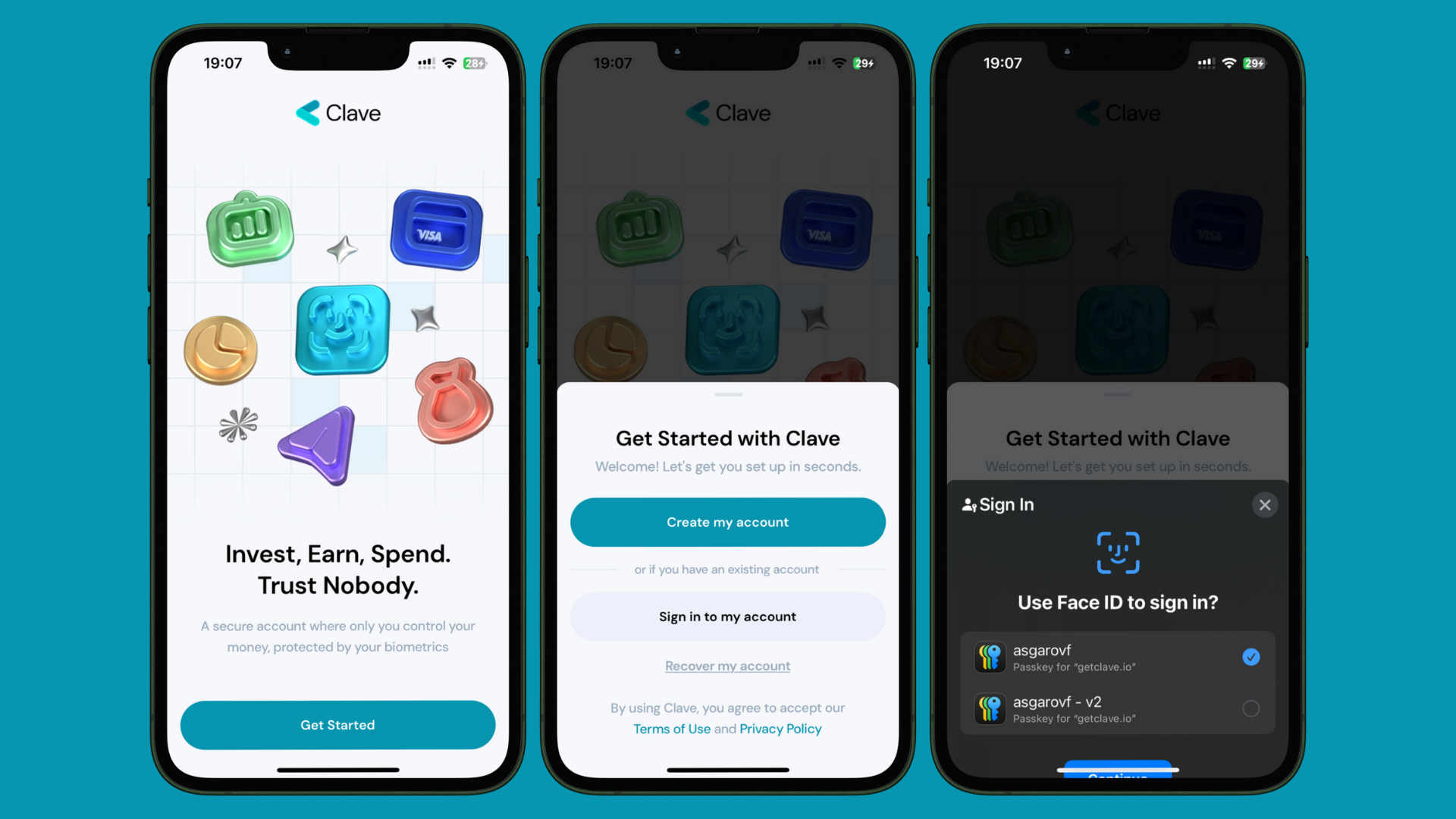 Once authenticated, you will be signed in to your Clave account, ready to go to the onchain world!